The CKEditor is a What You See Is What You Get (WYSIWYG) Editor.
On www.ugx-mods.com we use it for almost all text areas where user can write data rich content with formatting and media element functionality.
UGX-Mods offers custom additions to enhance the usability and feature set.
¶ How to use it
The core documentation can be viewed here: https://ckeditor.com/docs/ckeditor4/latest/guide/dev_features.html
One extra worthy mention is the magic line . ( https://ckeditor.com/docs/ckeditor4/latest/guide/dev_magicline.html )
If you want to insert a new line and write at a certain position (like after a block quote) you must first focus the editor (click inside the text area) and the move your mouse to the place where you want your newline.
A
red line
with the handle (
 ) will appear.
You have to click this handle to create a new line at this position!
) will appear.
You have to click this handle to create a new line at this position!
¶ Major Buttons Explained

From left to right:
- Image
- Code snipped
- Media embed
- Table
- Horizontal line
- Special chars
- Spoiler
- Download button
- UGX Map Manager Info
- UGX Mod Info
- Progressbar
- Quote
- HEAD for special formatted headlines
- PRE tag to prevent BBCode formatting and make it look like a code block
- NO BBC tag to prevent BBCode and make it look like normal text (prevents smiley or other tags)
- Slideshow ( How to create a Slideshow )
- Gallery ( How to create a Gallery )
- Emojis
- UGX Emots
¶ Add images / videos / meda
You have different options:

¶ Image
- You must upload the image to a imagehost or your website or whatever. Google drive is not recommended!
- You must use the direct image URL (https://) and not DATA URL! (usually ends with jpeg, jpg, png, gif, etc)
¶ Example
Upload an image to imgur, this will create a post like this: https://imgur.com/CVQUGIb
Don't use "Copy Link" because this is NOT the direct image url.
To do this, right click on the image and copy the image address / url!
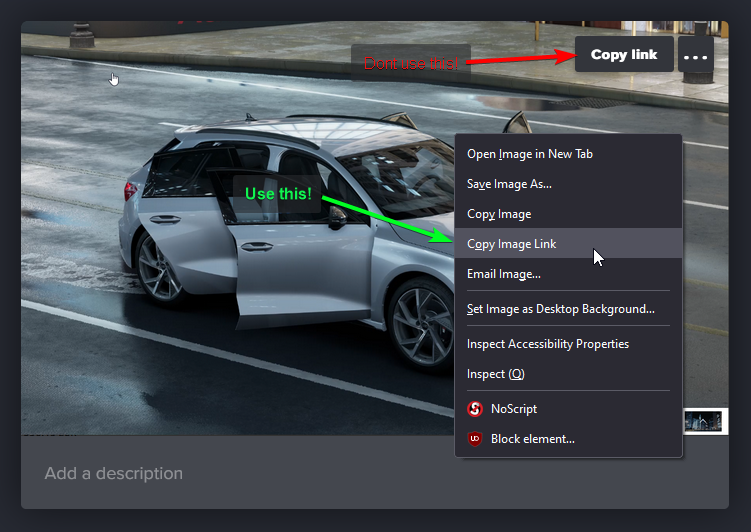
This will get the direct image url: https://i.imgur.com/CVQUGIb.png (notice the .png extension 😉 )
Now this URL can be used for the image insert, simply click the Image Button and a Dialog appears.
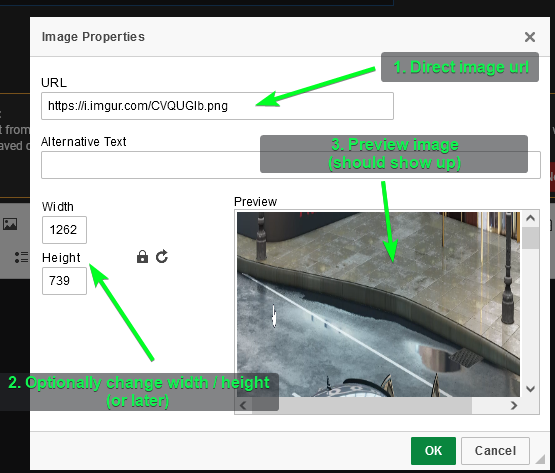
Click "OK" and the image should be added to your message.
You can also resize the image from there, simply click once on the image and then drag one of the resize points:
¶ Codesnippet
Click the button and paste your code into it.
For Call of Duty Scripting (GSC) use "C#"
¶ Media Embed
You can embed almost any link into your post, for example also the previous imgur link from the example, or a youtube video.
If we take the example from above, be sure to use the imgur post URL and NOT the direct image url.
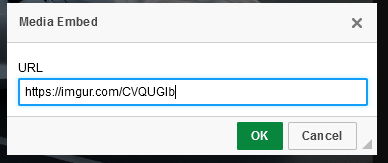
After pressing "OK", it will look like this:

Don't worry, this is okay. You can double check this by clicking on "Preview" instead of "Post" at the bottom (if available!)
In the end, it will look like this:

An embedded YT video looks like this (it will also show correctly in your edit area already, unlike imgur)


¶ Slideshow & Gallery
These two types are a list of images, displayed differently.
You must have at least two images, to create a slideshow or gallery!
Add as many images as you want, you can also create multiple galleries or slideshows depending on your message 😉
¶ Slideshow

If you click on the settings tab, you can modify the following:
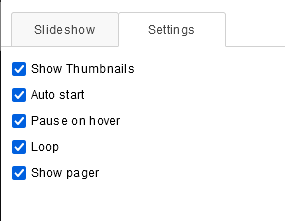
- Thumbnails under the slider, this is useful when you have many images and you want a tiny preview where users can click and directly go to this image
- Auto start, will start the slider as soon as the page is loaded
- Pause the slideshow when the user hovers over the image
- Loop the slideshow (after reaching end, it will start from the beginning again)
- Shows a pager (dots / thumbnails) - If disabled, no thumbnails or dots (if thumbnails is not checked) will be shown
It's recommended to leave the settings as they are.
After clicking okay, this is how the slideshow will look with default settings:

(at the bottom you see the thumbnails)
If you disable thumbnails, this is what it will look (with dot pagers)

(notice the dots at the bottom instead of the thumbnails)
NOTE: Double click on the slideshow, to modify it.
¶ Gallery
Works like the slideshow (see above), but will output the images like this:

Users can click on it to get a bigger preview, and from there also go to the next / previous images (slide through them)
¶ Autocomplete
You can disable parts or complete autocomplete by clicking on it:

¶ Mention someone
Type @ and then the name of the user
NOTE: atm the user won't receive any notification (alert / email) - this feature is planned.
¶ Quicklinks
Type # and then a command to insert something special. ATM this allows to quicklink certain UGX pages.
¶ Emojis / Emotes
Type : and then the name of the emote / emoji. 🙂
¶ Known Issues
The editor will crash if there is an error, we highly recommend to copy the
content if possible and reload.
Hopefully the auto recovery kicked early enough in and you can continue your
work. In a bad case you might need to start from scratch again.
Please report any issues you encounter - only with reports we can investigate and further improve the editor!!